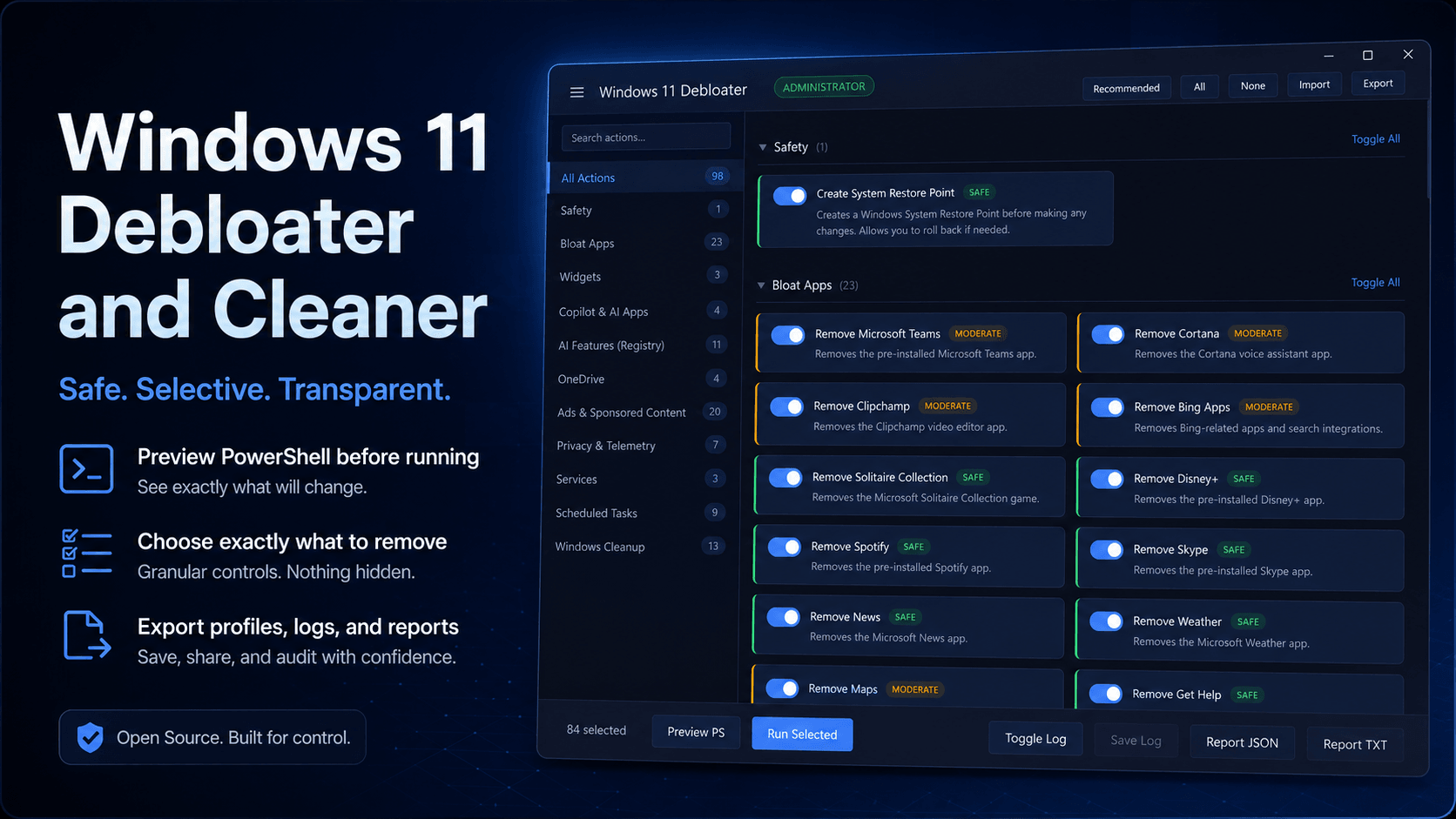
Windows 11 has a lot of things I do not want on my machine.
Promoted apps. Suggestions. Widgets. Copilot integrations. Telemetry. Search extras. Background services. Small pieces everywhere that make the system feel heavier, noisier, and less like something I control.
There are already debloat scripts out there, of course. Some are good. Some are questionable. Some are huge PowerShell files that ask you to run them as administrator and hope for the best.
That was the part I did not like.
I do not like running random scripts from the internet on my own PC without knowing exactly what they are doing. So I built my own tool.
The result is Windows 11 Debloater and Cleaner, a small open-source desktop app that wraps Windows 11 debloat actions in a safer, more visible workflow.
The Problem
Most debloat tools have one major issue: trust.
You download a script, open a terminal as administrator, run it, and let it make changes to your system. Maybe you read the script first. Maybe you do not. Maybe you understand every registry edit, package removal, service change, and scheduled task modification. Most people will not.
That is not good enough for me.
I wanted something where every action was visible before execution. Something where I could choose what gets removed, disabled, or left alone. Something that showed me the PowerShell before it ran. Something that gave me logs and a final report instead of just dumping text into a terminal.
So the goal was not to make the most aggressive debloater possible.
The goal was to make one that felt controlled.
What the App Does
The app turns Windows 11 debloating into a selectable workflow.
Instead of blindly running one big script, it exposes actions individually. You can review them, toggle them, preview the generated PowerShell, run only what you selected, and then inspect the result.
Current action areas include:
Restore point creation
Built-in and promoted app removal
Widgets cleanup
Copilot and Windows AI package removal
Registry-based AI feature disabling
OneDrive actions
Ads and sponsored content reduction
Privacy and telemetry settings
Selected service changes
Scheduled task disabling
Windows upgrade cleanup
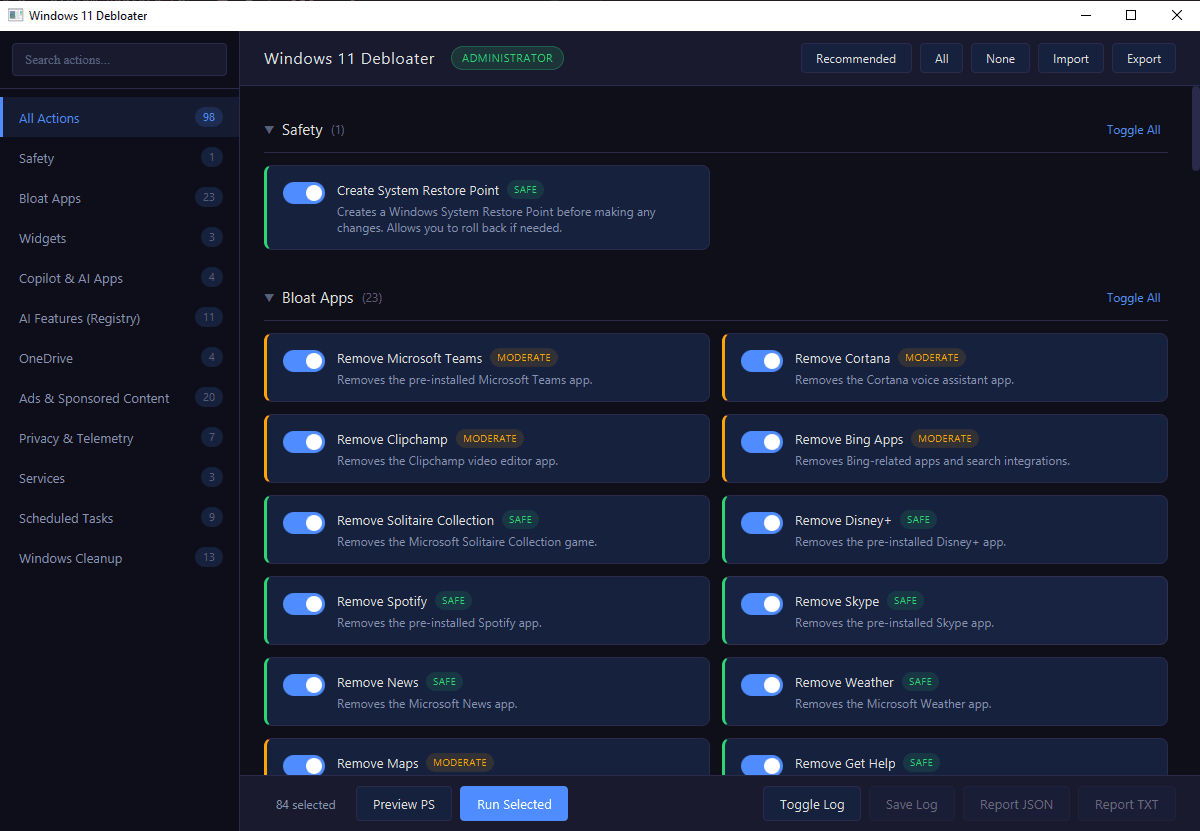
The Windows Cleanup section is aimed mostly at people who upgraded from Windows 10 to Windows 11 and want to remove leftover upgrade files. It does not pretend to make an upgraded system identical to a fresh install. A real fresh install is still different.
That distinction matters.
I wanted the tool to be useful without lying about what it can do.
How It Works
The application is built with Java 21, JavaFX, WebView, HTML, CSS, JavaScript, and PowerShell.
The interface is local. It runs inside a JavaFX WebView, but the WebView does not execute PowerShell directly. JavaScript only sends selected action IDs back to Java.
Java then validates those IDs against a known action registry. If the IDs are valid, the app generates a temporary PowerShell script containing only the selected actions.
That script can be previewed before execution.
When the user runs it, the app streams live logs, parses structured results, and produces exportable reports.
That structure is the main point of the project. The UI is not trusted with raw PowerShell. Profiles do not contain arbitrary scripts. Unknown action IDs are rejected. Each action lives in the Java-side registry.
It is still a system modification tool. It still needs administrator permissions to actually change Windows. But the workflow is much more transparent than running a random all-in-one script.
Safety Choices
This kind of app can break things if it is reckless, so I made some choices on purpose.
Restore point creation is included and enabled by default.
Aggressive actions are marked as aggressive.
OneDrive uninstall is not treated the same as hiding a suggestion.
Windows.old removal is clearly marked because once it is removed, you cannot roll back to the previous Windows version.
DISM ResetBase is optional because it can prevent installed updates from being uninstalled later.
Xbox packages are intentionally excluded because they are needed for things like Game Pass and Forza.
That last one is a good example of the general philosophy. This is not a “delete everything Microsoft” tool. It is selective. Some things are annoying. Some things are useful. Some things are annoying until you realise another feature depends on them.
Why I Made It
I built this mainly for myself.
I have been avoiding Windows 11 for a while because the interface and defaults feel like a step back from Windows 10. But if I have to use it, I want it to feel less bloated and less noisy.
At the same time, I do not want to blindly trust someone else’s script with administrator access to my machine.
So this project became my middle ground.
A small desktop launcher.
A visible action list.
A PowerShell preview.
Profiles.
Live logs.
Structured reports.
No hidden magic.
I also built it with the help of Claude. That is worth saying openly. The idea, direction, testing, safety decisions, and review were mine, but AI helped speed up implementation. I do not see that as a bad thing. I see it as using the tools available, while still being responsible for what the project does.
Who This Is For
This is for people who want more control over Windows 11 without blindly running a script they barely understand.
It is for people who want to inspect actions before applying them.
It is for people who want to reuse a debloat profile after a major Windows update restores some settings.
It is for people who want a small “mini nuke” for Windows 11, but one where the red button is not the only button.
What This Is Not
This is not a magic performance booster.
It will not turn a broken Windows install into a perfect one.
It will not make an upgraded Windows 11 system identical to a fresh install.
It cannot automatically undo every change after execution. That is why restore points matter.
It is also not something I would tell people to run blindly just because it worked well for me. You should still read what it does. You should still preview the PowerShell. You should still create a restore point. You should still test it in a VM first if you can.
The whole point of the project is not “trust me.”
The point is “check it yourself.”
Open Source
The project is open source, so anyone can inspect it, use it, fork it, break it, improve it, or point out where I made a bad decision.
That is how tools like this should be shared.
Windows debloating is always a bit risky because it touches system settings, packages, services, registry values, and scheduled tasks. Pretending otherwise would be dishonest.
But if the tool is transparent, selective, and documented, the risk becomes easier to understand.
That was the goal.
Control.